
Seacrest Foundation’s Stroll for the Soul, presented by the William Gumpert Foundation

What would you like to do?


Fox Point Farms, Encinitas

Registration is free! Donations and fundraising are optional. Every dollar raised benefits Seacrest residents in need.

Event day information

When
Sunday, November 15, 2026
9 a.m.–1 p.m.
Where
Fox Point Farms
Encinitas (opens a map in a new tab)

Free to attend. Walking, fundraising, and donations are optional.

Register for the event (opens in a new tab)

Opens in a new tab.

Bringing a dog? Read the dog guidelines before you come.

Event day schedule

9:00 a.m.
Check-in opens
9:45 a.m.
Opening remarks and warmup
10:00 a.m.
Walk and trail hike begin
Community day festivities open
11:15 a.m.
The stroll around Fox Point Farms
11:45 a.m.
Program and awards
1:00 p.m.
Event concludes

Walking options

10 a.m. Walk: sidewalk or trail hike

We’ll set off together from Fox Point Farms on a paved sidewalk. Along the way, you can choose to stay on the sidewalk or hike on a dirt trail with beautiful views and some moderate inclines, including one steeper hill. When you reach your route’s turnaround point, you’ll head back the way you came for music, food, and fun at the farm!

Back by 11:15? Join the stroll or cheer everyone on!

Water will be available along both routes.

If the trail is wet or muddy, everyone will use the sidewalk route.

11:15 a.m. The stroll

A relaxed, wheelchair-accessible loop around the lawn at Fox Point Farms. Walk as much or as little as you like. Those returning from the earlier walk are welcome to join, too!

You’re also welcome to come just for the community celebration.

Food and activities

Enjoy live music, farm-fresh food, farm tours, children’s activities, exhibitor booths, and time with friends and family.

Fox Point Farms offers multiple dining options in the event area.

Wooden chairs overlooking the lawn and Haven Farm + Table at Fox Point Farms.

Bringing a dog?

Well-socialized dogs are welcome! Please read our dog guidelines before you come to help everyone enjoy the day.

Read the dog guidelines

Before you come

  • Dogs must be at least four months old, healthy, and well-socialized.
  • Please bring only dogs with a current license and rabies vaccination.
  • Keep your dog home if they are ill or have open wounds. Female dogs in heat may not attend.

Leashes and space

  • Use a non-retractable leash no longer than six feet. Keep it in hand and your dog under control at all times.
  • A handler age 18 or older must hold the leash. Children should not hold it.
  • We recommend no more than two dogs per handler.
  • Give people and other dogs space. Ask before allowing your dog to approach, and don’t force interactions.

Keeping your dog comfortable

  • Watch for signs of stress, fear, overheating, or excessive barking. Take your dog home if they are struggling with the surroundings.
  • Shaded areas and water bowls will be available.
  • Please bring waste bags and clean up promptly. Extra bags will be available from staff.

Where dogs can go

Dogs are not allowed in the farm area. A gate and signs will identify that area. Please also keep dogs out of kitchens, food-preparation areas, and any posted pet-free areas. If you have questions about access with a service animal, please contact us.

If behavior becomes unsafe

Staff may ask you to leave if your dog’s behavior puts others at risk, including lunging, snapping, biting, or repeated uncontrolled barking. Please follow staff instructions.

Common questions

What time should I arrive if I’m just doing the stroll?

The stroll starts at 11:15 a.m. We recommend arriving by 10:30 a.m. so you have time to check in, get settled, and enjoy the festivities before we set off.

Can I register when I arrive?

Please register in advance whenever possible. This helps us prepare for everyone attending and keeps check-in moving smoothly. If you haven’t registered beforehand, you can register when you arrive, but please allow extra time.

Register in advance (opens in a new tab)

Opens in a new tab.

See the registration guide.

Do I have to walk or fundraise?

No. Come enjoy the community celebration! The event is free to attend, and walking, donations, and fundraising are optional.

Are children welcome?

Yes! Families, children, and grandchildren are welcome. Please include everyone attending when you register, including children.

Is there a wheelchair-accessible route?

Yes. The 11:15 a.m. stroll follows a wheelchair-accessible loop around the lawn. You can walk as much or as little as you like.

The 10 a.m. dirt trail includes some moderate inclines and one steeper hill.
Register for Stroll for the Soul

Registration is free. Donations and fundraising are optional.

Open the event website

Go to registration (opens in a new tab)

Opens in a new tab so you can keep this guide open.

On the event website, select Register Here.

Choose how to register

Select As an individual, Join a team, or Create a team.

Which option should I choose?
  • As an individual: Register without joining a team.
  • Join a team: Find and select the team you want to join.
  • Create a team: Follow the prompts to start your own team.

Not sure about a team yet? Register as an individual. Contact us later if you’d like to join or change teams.

Choose your registrations

Use the + button to select the number of registrations you need, then select Reserve.

On a phone, scroll down to find Reserve. On a computer, it appears beside the registration choices.

This first Reserve button takes you to the attendee information. You’ll complete registration at checkout.

Registration types and multiple attendees
  • Walk & Community Day Participant: For people attending the walk and community day.
  • Community Day Only (no walk): For people attending the community celebration without walking.
  • Virtual Walker: For people participating from elsewhere.

Include everyone attending, including children. You can register several people at once and choose a different registration type for each person.

Enter each person’s information

Complete the attendee information and event questions, then select Next. Repeat for each person you’re registering.

Each adult must personally review and accept their own waiver. A parent or guardian must review and accept the waiver for a child.

Completing the form

Fields marked with an asterisk (*) are required.

Scroll through the form to find the waiver and questions about age, shirt size, and walking route. You can also request help with your fundraising page.

You may use the same email address for more than one attendee, including a child.

Selecting a shirt size records your preference. To qualify for a shirt, you must raise $150 credited to your individual fundraising page. See the Fundraise guide for more information.

Add a donation or skip it

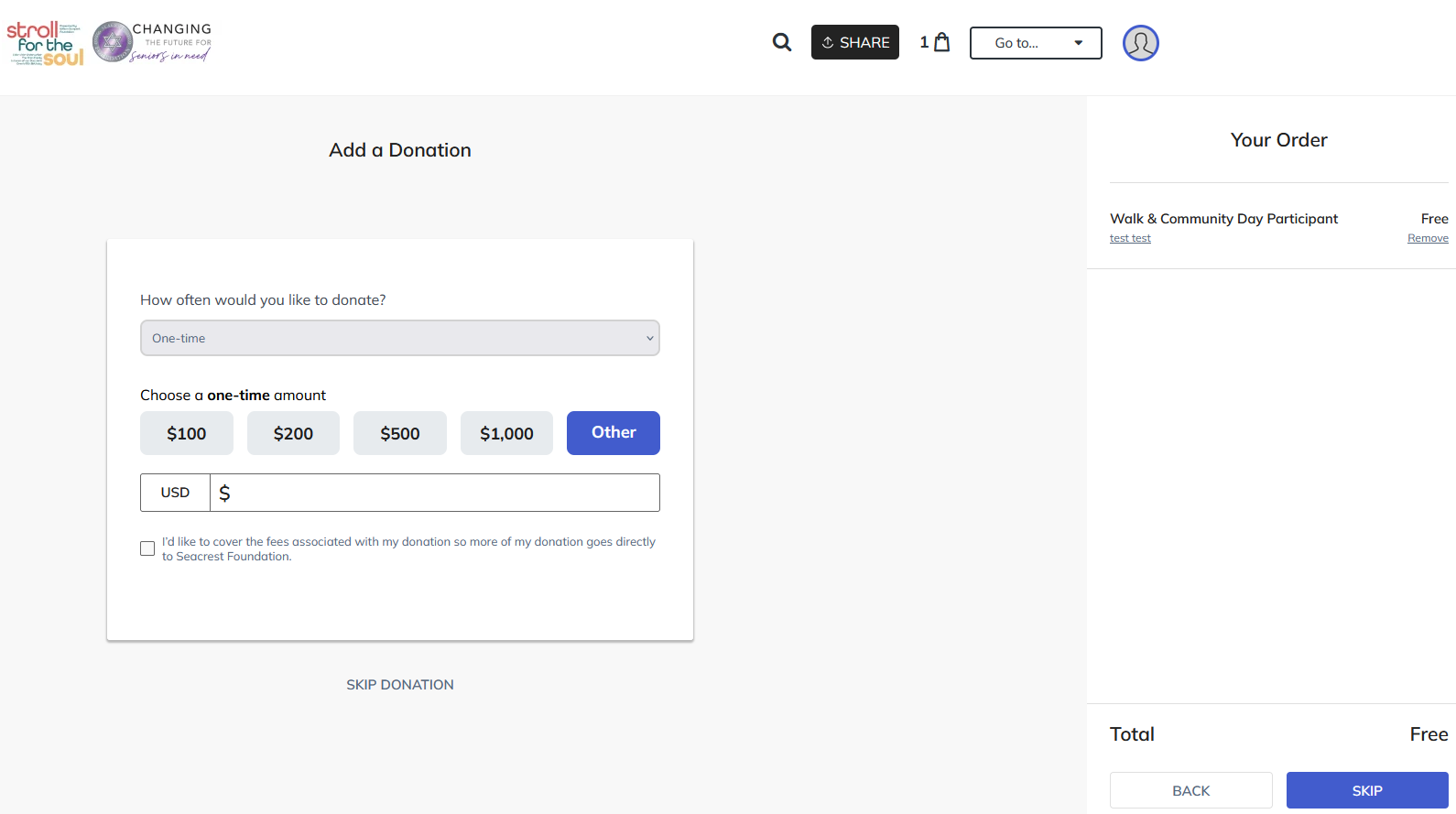
The Add a Donation page is optional.

To continue without donating, select Skip Donation or Skip. Your registration will still be free.

If you’d like to give, choose or enter an amount and continue.

Finding the skip option

Skip Donation appears below the donation form. You may need to scroll down to see it.

Add a Donation screen with Skip Donation below the form and a Skip button in the order panel
Desktop view. On a phone, scroll below the form to find the skip option.

Complete checkout

Enter or confirm your contact information, review your order, then select the final Reserve button.

When you see the confirmation screen, you’re registered!

Thank you for joining us.

Checkout and confirmation

You can use the dropdown to copy information from an attendee or enter it yourself.

Check the email address carefully. Your registration confirmation will be sent there.

If you skipped the donation, your total should be $0 and checkout should show a free transaction.

Common questions

Do I have to fundraise?

No. A fundraising page is created for each registrant, but using it is optional. You do not have to reach a fundraising goal to attend.

If you’d like to raise funds, the Fundraise guide will help you get started.

Can I join or change teams after registering?

Yes. Contact us and we can help. You do not need to register again.

I didn’t receive a confirmation email. What should I do?

Check your spam or junk folder. If you still can’t find it, contact us so we can check your registration before you submit another one.

Use your fundraising page

Thank you for helping support Seacrest residents! If you’ve registered, your fundraising page is ready to share. Adding a photo and a few words about why you’re participating helps friends connect with the cause through you.

Stroll for the Soul benefits Seacrest Village’s Resident Assistance Fund, helping residents who have exhausted their financial resources continue receiving the care they deserve and remain in the community they call home.

Fundraiser benefits
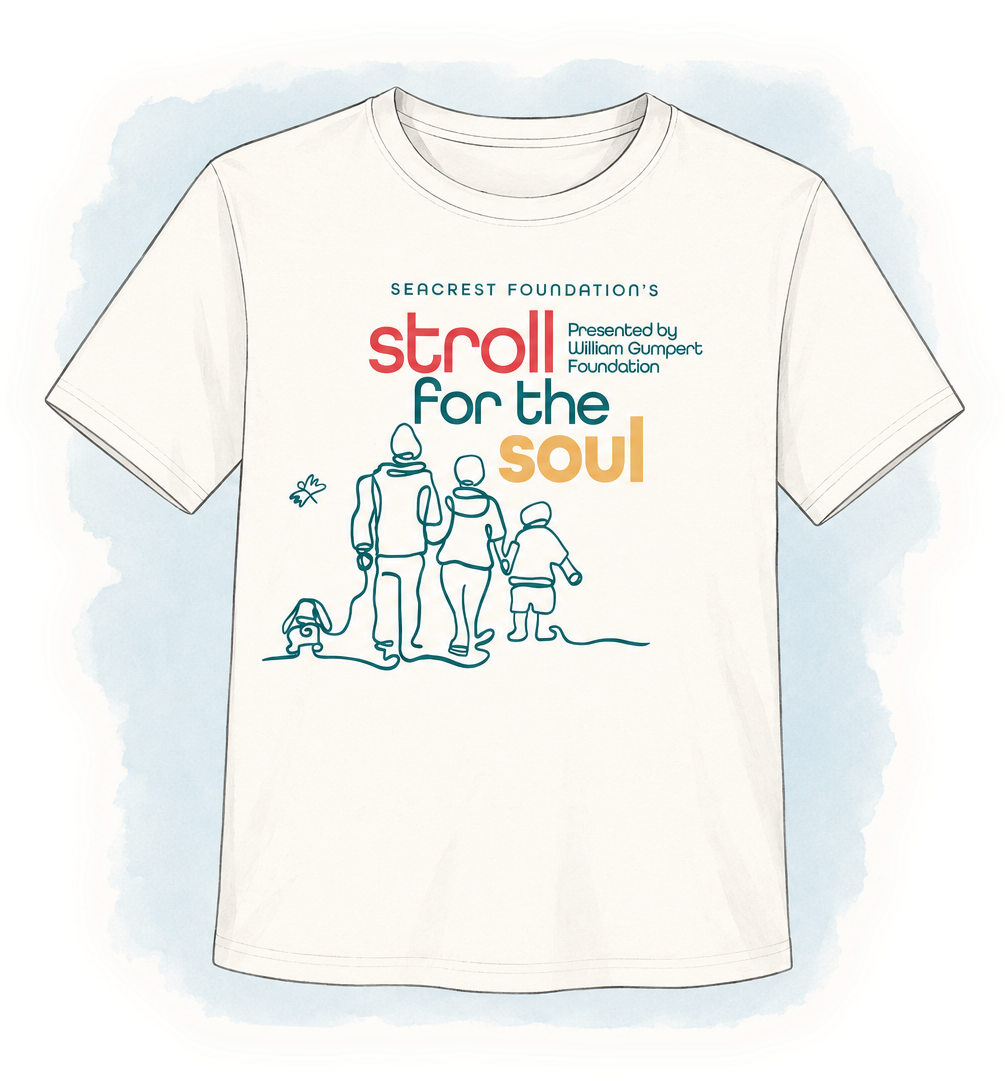
Official Stroll for the Soul T-shirt with the event logo and family illustration

When you raise $150

By November 9
An invitation to the November 12 kickoff happy hour at Seacrest Village.
By event check-in on November 15
An official Stroll for the Soul T-shirt and a food voucher for Fox Point Farms eateries on event day.
Virtual walkers: by 9 a.m. Pacific, November 15
Qualify to have your shirt mailed to you.

Donations toward the $150 total need to be credited to your individual fundraising page. Gifts made through a team page count toward the team’s total.

Sign in

Open the event page and select Sign in. Use the email address you registered with and follow the prompts.

Open the event page (opens in a new tab)
Finding Sign in or setting a password

On a phone, open the menu with three horizontal lines in the top-right corner to find Sign in.

If you’re asked for a password you don’t have, select Forgot your password? and follow the instructions.

Your registration follow-up email also includes information about managing your page. Check your spam or junk folder if it hasn’t arrived.

If you can’t access your page, contact us. We’re happy to help!

Find your fundraising page

Open Go to… and select your individual fundraising page. Use Share to get your link.

Every page starts with a default message and goal. You can change both at any time. Choose a goal that feels right for you, and take a minute to tell your supporters why supporting Seacrest matters to you.

Finding your page on a phone

Open the menu in the top-right corner. Your individual and team page links are listed there.

To edit your page, select Manage. On a phone, it may be inside the menu. If another menu appears, choose Manage fundraising page.

Make your page personal

Your friends know you. A photo helps them recognize your page, and your message helps them understand why you’re asking for their support.

Tell them who you’re walking for or why you believe in Seacrest’s work. A few sentences can help someone understand what their gift will support and why it matters to you.

How to edit your photo or story

Open Manage on your fundraising page.

  • Story: Write your message and add a picture to your story.
  • Details: Update your headline and page picture.

On a computer, the dashboard tabs run across the top. On a phone, they run along the bottom.

Save your changes. Select View Page to check how your page looks to supporters.

Not sure what to write?

You might explain who you’re walking in honor or memory of, how Seacrest has helped your family, or why you believe older adults deserve care and support.

A personal connection to Seacrest isn’t required. A few sentences about why you support the work are enough.

Set your fundraising goal

Choose an amount that feels achievable, with a little room to stretch. A goal gives you something to work toward and helps friends and family see how their gifts add up to support Seacrest residents.

Your page starts with a default goal. To change it, open Manage on your fundraising page, select Details, update your goal, and save your changes.

If you reach your goal, you can increase it and keep going! You can also adjust it at any time. There’s no minimum you’re required to raise, and every gift supports residents who need help paying for their care.

Share your link

Start with a few people you feel comfortable contacting. Send your fundraising link with a short message by text or email.

You can also post it on social media. A personal message gives you room to explain why you’re taking part.

Need help finding the words?

In honor or memory of someone

I’m taking part in Stroll for the Soul on November 15 in honor of [name]. [Add a sentence about this person and why you’re walking.] I’m raising funds to help Seacrest Village residents receive the care and support they need when they can no longer afford it. Please consider supporting my walk: [your fundraising link] Thank you for considering it.

Supporting Seacrest’s work

I’m taking part in Stroll for the Soul on November 15 to support Seacrest Village. I believe older adults deserve to feel safe, cared for, and at home. The funds we raise help residents who cannot afford the care they need. Please consider supporting my walk: [your fundraising link] Thank you for your support.

Replace the text in brackets before sending. Use the words that sound like you and change the rest.

Optional invitation: “I’d also love to see you at the walk and community day. You can register for free at www.seacrestfoundation.org/strollforthesoul.”

Follow up and say thanks

People can miss a message or plan to come back to it later. A friendly reminder gives them another chance to support you.

When someone gives, send a personal thank-you.

Sample reminder and thank-you

A friendly reminder

I wanted to share my Stroll for the Soul fundraising page again in case you missed it. I’m walking on November 15 to help support care for Seacrest Village residents who need financial assistance. If you’d like to give, here’s my page: [your fundraising link] Thank you for considering it.

A thank-you

Thank you for supporting my Stroll for the Soul fundraiser! Your gift helps Seacrest Village care for residents who need financial assistance. I appreciate your support.

If someone declines, thank them for considering it and leave it there.

Leading a team?

Thank you for bringing people together to support Seacrest residents! As captain, you can personalize your team’s page, set its fundraising goal, and help members get started.

Need to create a team? See the registration guide, or contact us for help.

Personalize your team page
  1. Open your team’s fundraising page and sign in using the email address you used to create the team.
  2. Select Manage.
  3. Open Story to change the team’s message. Tell supporters who you are and why your team is participating.
  4. Open Details to change the team’s photo and fundraising goal, then select Save Changes.

Choose a goal that feels right for your team. A photo and a personal message help people recognize your group and understand why Seacrest matters to you.

The captain manages the team page and its goal. Each member manages their own fundraising page, photo, message, and individual goal. Captains cannot edit other members’ pages, photos, or goals.

Invite people to join

Share your team-page link with friends, family, or colleagues, along with a few words about why you’d love to have them join you.

For an invitation you can adapt:

  1. In your team-page editor, select Emails, then Recruit new teammates.
  2. Personalize the message, keeping the link to your team page.
  3. Select Copy Message, then paste it into your own email or text.

Anyone planning to attend should also make sure they’ve registered for the event at www.seacrestfoundation.org/strollforthesoul (opens in a new tab).

Help your members get started

Open Teammates in your team-page editor to see who has joined. Select a member’s picture to visit their fundraising page.

Share this fundraising guide with your members, thank them for participating, and keep them posted as your team makes progress. A friendly check-in can help someone who isn’t sure where to start.

When asking supporters to give, share an individual walker’s page if you want that walker to receive credit. Gifts through the team page count toward the team goal but aren’t credited to an individual walker.

Need help adding someone to your team or changing their team membership? Contact info@seacrestfoundation.org. We’re happy to help!

Common questions

Can I fundraise without attending?

Yes. Register as a Virtual Walker and share your fundraising page. See the Register guide.

What happens if I don’t reach my goal?

There is no requirement to reach your goal. The money you raise still supports Seacrest’s work, and you can attend without fundraising.

Can I donate to my own page?

Yes. Open your individual fundraising page and select Donate. Giving to your own page is optional.

Can a donation to my team be credited to me?

Contact us and we can help move a team donation to a specific walker.

How do team captains edit their page?

The person who created the team is its captain. See Leading a team? for instructions on editing your team page, inviting teammates, and helping members get started.

Can I join or change teams?

Yes. Contact us and we can help. You do not need to register again.

What if someone can’t donate?

They can share your page or tell others about the event. You can also invite them to attend the community day.

Need help?

Contact us at